
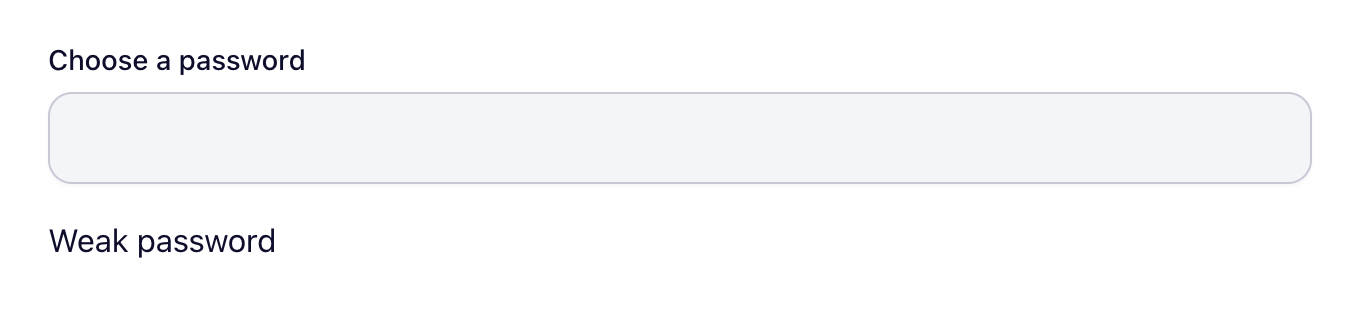
Password with a strength meter and an optional confirmation. Included in the free plugin.
Add it to a form
- Open your form in the builder.
- In the field library, find Password under Basic, or type its name in Search fields.
- Drag it onto the canvas, or click it to add it at the end.
- Select it on the canvas to change its settings.
Settings
Besides the label, help text, required setting, width and logic that every field has, this field has its own settings:
- Placeholder
- Minimum Length
- Show Strength Meter
- Require Confirmation
- Store a hash
Plans
| Free | Starter | Pro | Agency |
|---|---|---|---|
| Included | Included | Included | Included |
Changelog
| Version | What changed |
|---|---|
| 2.6.0 | New: Make, n8n and other automation tools can connect with signed REST hooks, polling endpoints for new entries, forms and fields, and a create-entry action, using an API key or an Application Password (Pro and Agency plans). |
| 2.5.0 | New: An MCP server so AI assistants such as Claude can work with your forms. Turn it on in SubtleForms > MCP, choose what it may do, and connect with an Application Password. |
| 2.4.0 | Fix: Password fields can show a strength meter and ask for the password again. |
| 2.2.1 | Fix: Passwords are never stored as typed. Entries show "Password provided", a field can opt in to storing a one-way hash, and passwords are left out of emails and CSV exports. |